All tutorials
Using the what3words for Google Sheets add-on
what3words for Google Sheets add-on brings the functionality of the what3words API to Google Sheets. You can convert coordinates to 3 word addresses (3wa) and vice versa using either formula-based or menu-based conversion. Menu-based conversion also supports language selection for coordinate-to-3wa conversions, making it useful for both ad-hoc lookups and large-scale batch operations.
The add-on can be used with Google Sheets in any browser.
To install the add-in, visit the what3words for Sheets page in the Google Workspace Marketplace. You will need to be logged in with your Google account in order to install it.
Alternatively, you can install the add-in directly from an open Google Sheet. Select “Extensions“ from the top menu, followed by “Add-ons” -> “Get add-ons”. Search for “what3words for Sheets” and install from there.
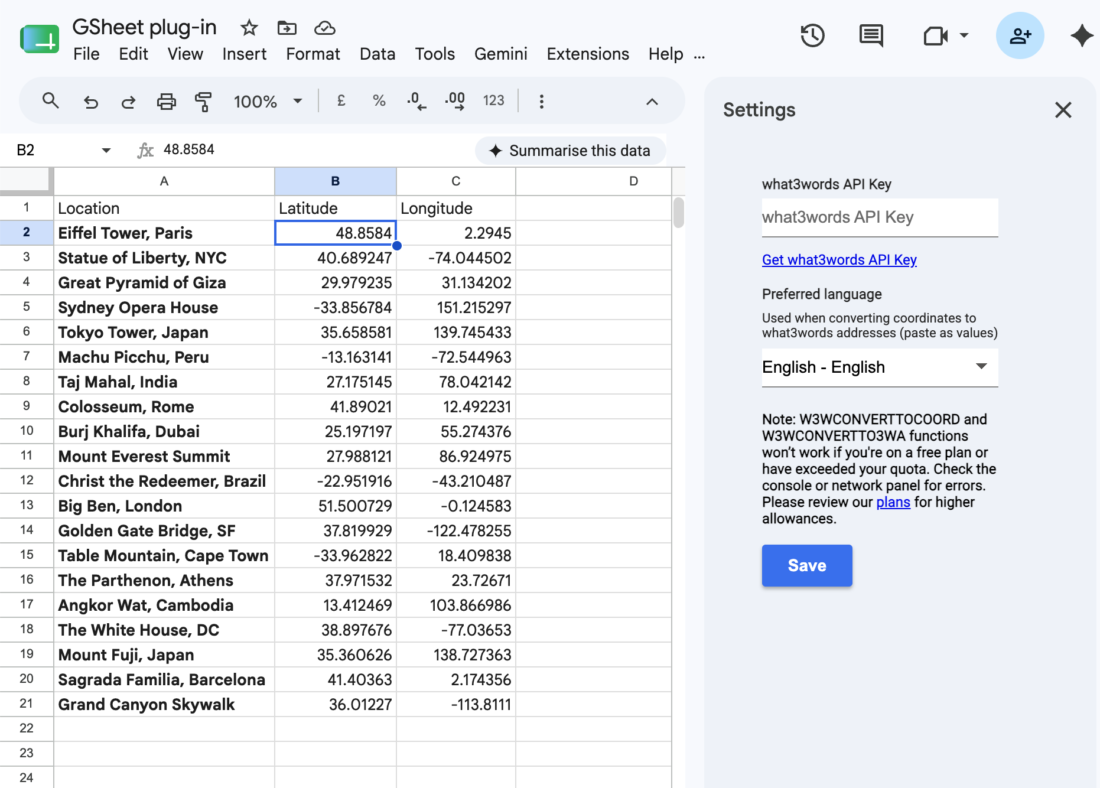
Once installed, open any Google Sheet in a browser. From the top menu, select “Extensions” -> “what3words for Sheets” -> “Settings”. You will be prompted to log in to your Google account, where you can enter your what3words API key.
In Settings, you can also choose the language used when converting coordinates to 3 word addresses through the menu-based workflow. English is selected by default. Choose your preferred language from the dropdown list and save your settings before running conversions.
Once your API key is saved, you’re ready to start using the add-on.
Please note that what3words for Sheets’ use of information received from Google APIs adheres to the Google API Services User Data Policy including the Limited Use requirements.
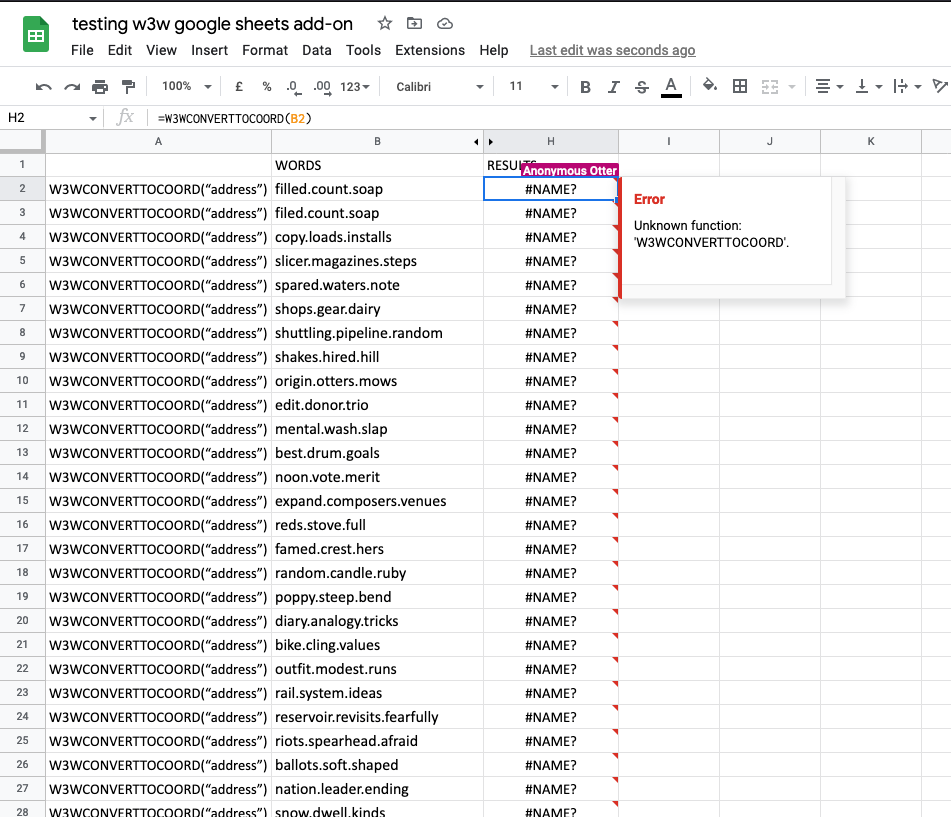
Sharing a Google Sheet with what3words formula-based conversions is not currently supported for non-owners and will result in an error, as shown on the screenshot.
If the sheet is intended to be shared, it is recommended to use the menu-based conversion method, which outputs static values accessible to all users regardless of ownership.
If you encounter errors or issues related to convert-to-coordinate requests while using the Free plan, please check the network panel for the following error message Error 402 payment required and its response, indicating the need to upgrade to a higher plan:
{
    "error": {
        "code": "QuotaExceeded",
        "message": "Quota Exceeded. Please upgrade your usage plan, or contact support@what3words.com"
    }
}
For more information, visit our API plans page. If you need further assistance, contact support@what3words.com.
How to Use
The add-on now supports two conversion methods. Choose the one that best fits your use case:
| Method | Best For | Quota Risk |
|---|---|---|
| Menu-based conversion (new) | Large-scale / batch conversions | Low - pastes values directly |
| Formula-based conversion | Single lookups, dynamic/live data | Higher - recalculates on sheet changes |
A menu-based approach was introduced to solve a known issue with large-scale formula conversions, where Google Sheets would trigger a circular recalculation loop (conversion -> cell changes -> Sheets recalculates everything -> repeat).
The new menu items paste results directly as static values, bypassing the recalculation loop entirely.
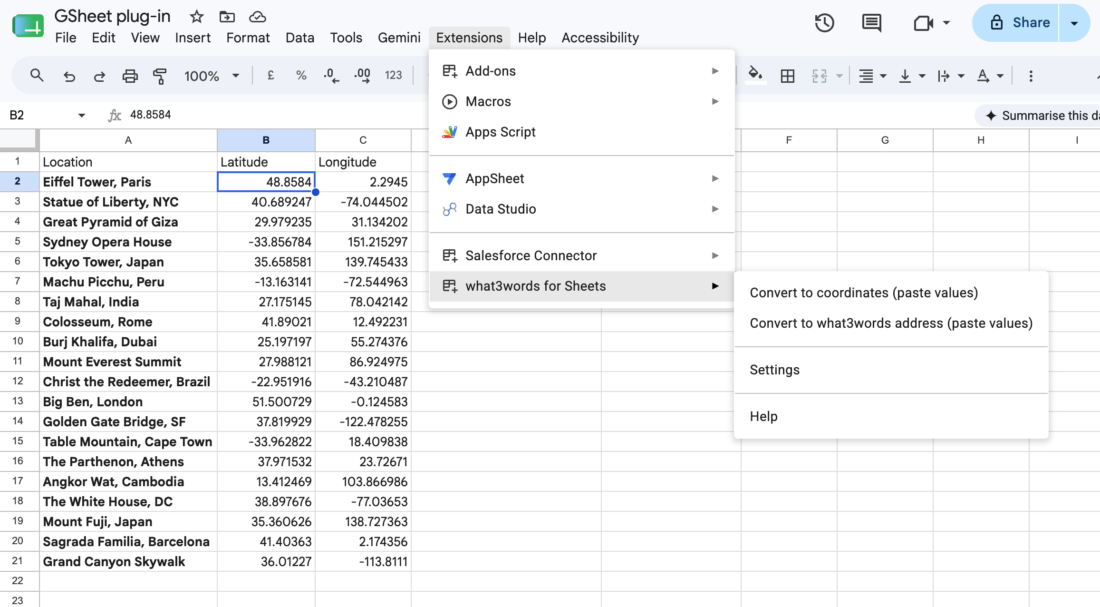
For coordinate-to-3wa conversions, the menu-based workflow uses the language selected in Settings. If you need 3wa in a different supported language, update the dropdown in Settings before running the conversion.
Convert to 3 word address
- To convert coordinates into the corresponding 3wa, make sure to place latitude values in the first column and longitude values in the second column.
- If needed, go to “Extensions” -> “what3words for Sheets” -> “Settings” and choose your preferred language. English is selected by default. Save your settings.
- Select both columns, or the specific cell pairs you want to convert as a batch.
- From the top menu, go to “Extensions” -> “what3words for Sheets” -> “Convert to what3word address”.
- Results will be pasted directly as values into the adjacent column
Convert to coordinates
- Enter all your 3wa (e.g.
filled.count.soap) in one column. - Select the cells you want to convert.
- From the top menu, go to “Extensions” → “what3words for Sheets” → “Convert to coordinates”.
- Results will be pasted directly as values.
Batch Conversions
Simply select multiple rows before clicking the menu item — the add-on will process all selected cells at once.
There are several formulas you can use with what3words for Sheets add-on and are ideal for dynamic or single-cell lookups:
Convert to 3 word address
=W3WCONVERTTO3WA(lat, long)
To convert coordinates into the corresponding 3wa, simply input the latitude and longitude as separate values.
Convert to coordinates
=W3WCONVERTTOCOORD(“address”)
To convert a 3wa into the corresponding formats, simply input the 3wa in the correct format (e.g. filled.count.soap) into this formula.
Translate a 3 word address
=W3WLANGUAGECHANGE(“address”, “language”)
With this formula, you can easily change the language of a 3wa by having the 3wa in question and the two letter code for the language as the input. For example, to find out the corresponding German 3wa for filled.count.soap, I would have (“filled.count.soap”, “de”) as the input.
Return AutoSuggest
=W3WAUTOSUGGEST(“address”, rank)
You can use this formula to return a result from the what3words AutoSuggest for an incomplete 3wa. You just need to use the incomplete 3wa up to the beginning of the third word along with the rank of the result you would like to return, i.e. 1 for the first result, 2 for the second and so on. It might look like (“filled.count.so”, 1) to return the first autosuggest result for filled.count.so
Return AutoSuggest with focus
=W3WAUTOSUGGESTFOCUS(“address”, rank, lat, long)
As with the previous formula, this allows you to return an AutoSuggest result for an incomplete 3wa, but this time using coordinates formatted as latitude and longitude to specify a focus around which results will be centered.
Return AutoSuggest with country clipping
=W3WAUTOSUGGESTCOUNTRYCLIP(“address”, rank, “country”)
As with the previous, this allows you to return an AutoSuggest result for an incomplete 3wa, but this time specifying a country within which results should be limited using the 2 digit country code. For example, using (“filled.count.so”, 2, “gb) would return the second ranked AutoSuggest result for “filled.count.so” within the UK.
Troubleshooting
If you encounter errors or issues related to convert-to-coordinate, convert-to-3wa and grid-section requests while using the Free plan, please check the network panel for the following error message Error 402 payment required and its response, indicating the need to upgrade to a higher plan:
{
    "error": {
        "code": "QuotaExceeded",
        "message": "Quota exceeded or API plan does not have access to this feature. Please change your plan at https://accounts.what3words.com/select-plan, or contact support@what3words.com"
    }
}
For more information, visit our API plans page. If you need further assistance, contact support@what3words.com.